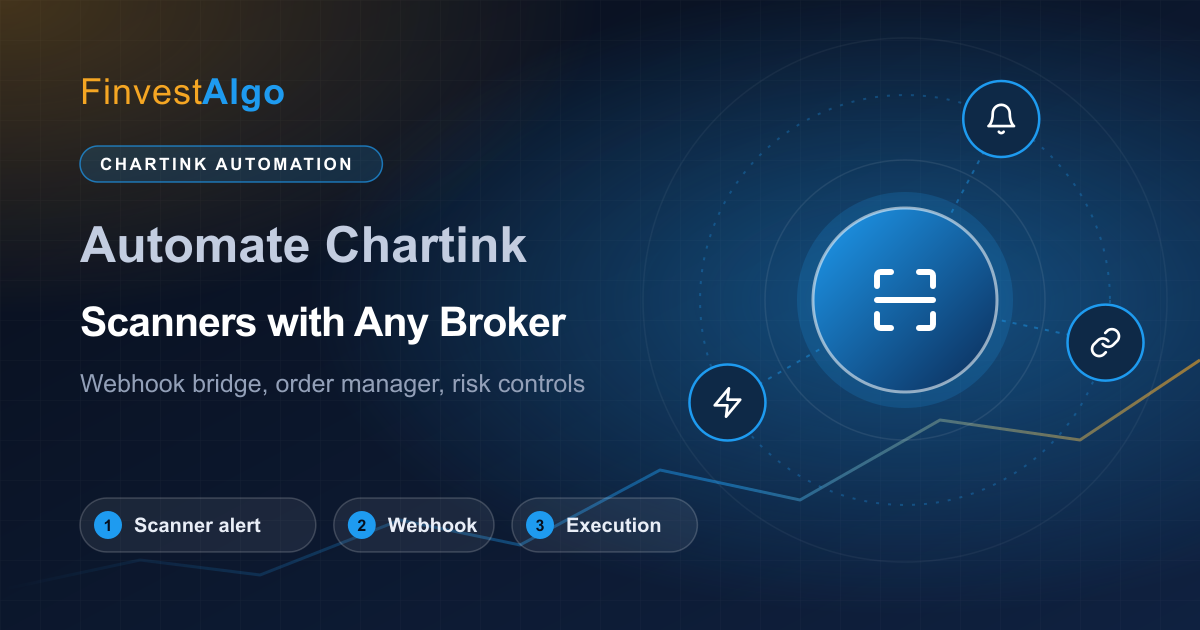
Chartink automation connects a scanner's webhook alert to an execution system that talks to your broker's API. With FinvestAlgo the workflow is: Chartink scanner, webhook alert, FinvestAlgo API bridge, Order Manager, broker API, order execution. You keep your own scanner logic; FinvestAlgo provides the execution infrastructure, not trading signals. Execution depends on the alert payload, your configuration, the broker API, available funds, market conditions and order restrictions, so test the full workflow before going live.
Key takeaways
- Chartink sends webhook alerts as HTTP POST requests to the URL you configure.
- A Chartink scanner payload is not the same as a TradingView alert message; check the format your bridge expects.
- A scan can return several stocks, so set quantity or capital rules and check duplicate-alert handling first.
- A successful webhook delivery does not prove that a broker order was accepted or filled.
- Test end to end with the smallest practical exposure before scaling up.
Automate Your Chartink Scanner. Stop Placing Every Trade Manually.
You have created a Chartink scanner. Your conditions are working. Stocks appear in the scan results, and you receive alerts when your conditions are met.
But there is still one problem.
You have to monitor the results and place orders manually.
When multiple stocks appear in a scan, checking every stock, calculating quantities, placing orders and managing positions can become difficult. Even if your scanner identifies opportunities correctly, manual execution can interrupt your trading process.
What if your Chartink scanner could send its signals directly to your broker for automatic order execution?
With FinvestAlgo Chartink Automation, you can connect your user-created Chartink scanners to supported broker accounts through a webhook/API bridge and configure execution using the available order-management controls.
The objective is simple: automate the execution of your trading rules while keeping control over your scanner, quantity, risk settings and broker account.
In this guide, you will learn:
- How Chartink scanner automation works.
- How to connect your broker to FinvestAlgo.
- How to configure Chartink alerts and webhooks.
- How scan results can trigger orders for multiple stocks.
- How to configure quantity, stop loss and target controls where supported.
- How to troubleshoot common Chartink automation problems.
Already using Chartink? You can keep using your own scanners instead of rebuilding your stock-selection logic from scratch.
1. What Is Chartink Automation?
Chartink automation connects a scanner's alert output to a trading execution system that can communicate with your broker.
Normally, a trader creates scan conditions in Chartink, reviews the stocks returned by the scanner and places orders manually.
With an automation bridge, the workflow becomes:
- 1Chartink Scanner
- 2Webhook Alert
- 3FinvestAlgo API Bridge
- 4Order Manager
- 5Broker API
- 6Order Execution
Each component has a specific role.
Chartink Scanner: Identifies stocks that match the conditions you have configured.
Webhook Alert: Sends the scan-alert data to a configured external endpoint.
FinvestAlgo API Bridge: Receives and processes supported signals for execution.
Order Manager: Applies the configured quantity and trade-management rules supported by your setup.
Broker API: Sends eligible orders to your connected broker for processing.
The scanner continues to determine which stocks meet your conditions. FinvestAlgo provides the execution infrastructure; it does not supply trading signals or stock recommendations.
2. What Can You Automate with Chartink?
Chartink scanner automation can be useful for different types of user-created scans, depending on your configuration and supported execution workflow.
Breakout scanners
Identify stocks meeting your breakout conditions and route the resulting alerts into your configured execution system.
Volume and momentum scanners
Automate execution based on your own volume expansion, momentum or price-action scan conditions.
Opening Range Breakout (ORB) scanners
Connect a scanner built around your opening-range conditions to an appropriate execution workflow.
Intraday stock scanners
Reduce the need to monitor scan results continuously and place every qualifying order manually.
BTST and STBT scanners
Connect eligible positional or carry-forward scan signals to a compatible execution configuration.
Multi-stock scanners
When one scan identifies multiple stocks, the alert data may contain multiple symbols. The receiving system must process those symbols according to its supported execution rules, quantity settings and broker constraints.
Automation does not guarantee that every scan result becomes a filled order. Execution depends on the alert payload, configuration, broker API, available funds, market conditions and applicable order restrictions.
3. What Do You Need Before Starting?
Prepare the following before configuring Chartink automation.
- An active Chartink account with access to the alert features required for your workflow.
- A scanner created and maintained according to your own trading rules.
- A FinvestAlgo account.
- A trading account with a broker supported for your intended setup.
- The required broker API connection and authentication.
- A FinvestAlgo bridge configured for the relevant Chartink signal format.
- A clear execution plan covering quantity, order type, entry and exit conditions, and risk controls.
Chartink's alert and webhook availability depends on its applicable subscription and configuration. Check your Chartink account for the features available to you.
If you are using a broker for the first time, complete its API authorization and any required security or static-IP setup before going live.
4. Step-by-Step: Set Up Chartink Automation with FinvestAlgo
Step 1Create Your Chartink Scanner
Log in to Chartink and open the scanner you want to automate.
Create or select your existing scan conditions. For example, you might use a breakout condition, a volume expansion condition or a momentum-based setup.
Before connecting automation, review the scan carefully:
- Confirm the stocks or market segment covered by the scanner.
- Check the conditions that qualify a stock for inclusion.
- Understand how frequently the scan runs.
- Review the scan's alert settings and the data it returns.
- Verify the scan manually before enabling automatic execution.
Start with one well-understood scanner rather than connecting every scanner at once.
Step 2Log In to FinvestAlgo
Open FinvestAlgo and sign in to your account.
Navigate to the broker connection or Demat account section of the platform.
The exact menu labels may vary with the current interface, so use the corresponding account and connection controls displayed in your dashboard.
Step 3Connect Your Broker Account
Select the broker you intend to use and follow the platform's supported connection procedure.
Depending on the broker, this may involve API authorization, credentials or a broker-hosted login and consent flow.
After completing the process, verify that the account connection is active.
Before proceeding, confirm that:
- The correct broker and trading account are selected.
- The connection is authorized and active.
- The required trading permissions are enabled.
- Any required API or static-IP configuration has been completed.
Never share passwords, API secrets or authentication tokens in a public support request.
Step 4Configure the Chartink Automation Bridge
Open the relevant bridge or automation section in FinvestAlgo.
Create or select a configuration intended for Chartink signals and follow the current platform instructions to connect the incoming scanner alerts.
Verify the signal format expected by your bridge before proceeding. Chartink scan alerts can contain fields such as stock symbols, trigger prices, scan names and alert metadata. The execution system must interpret the incoming payload correctly.
Do not assume that a TradingView alert message and a Chartink scanner payload use the same format.
Step 5Configure the Chartink Alert and Webhook
Open your scanner in Chartink and locate its alert configuration, commonly accessed through the create or modify alert controls.
Configure the alert according to your intended scan schedule and the available Chartink options.
Enter the appropriate FinvestAlgo webhook URL in the webhook field, following the current setup instructions provided for your account and bridge.
Review the configuration before saving it.
Check these items:
- The alert is attached to the correct scanner.
- The webhook URL belongs to the intended FinvestAlgo bridge.
- The alert schedule matches your intended workflow.
- Any required payload fields are supported by the receiving system.
- The alert is saved and enabled.
Chartink documents webhook alerts as HTTP POST requests sent to the configured URL. The data sent with the alert represents the relevant scan results and alert information.
Step 6Verify the Signal-to-Order Mapping
Before live execution, verify how the scanner alert is translated into an order.
A Chartink scan may return one stock or several stocks in a single alert. Your execution setup must correctly interpret the returned symbols and apply the intended trading rules.
Review the following:
- Symbol mapping between Chartink and your broker.
- Exchange and product type.
- Buy or sell direction, where defined by your configured workflow.
- Quantity or capital-allocation rules.
- Duplicate-alert handling and repeat-entry behaviour.
- Entry, exit and position-management conditions.
A scanner that identifies a stock does not necessarily define every order parameter. Make sure the execution configuration supplies the required details instead of assuming they will be inferred automatically.
- 1Chartink scan result
- 2Symbol mapping
- 3Quantity rules
- 4Order Manager
- 5Broker
Step 7Configure Quantity and Risk Controls
Choose the quantity method supported by your FinvestAlgo setup.
Depending on the available configuration, execution may use fixed quantity or capital-based quantity rules. For scans that return multiple stocks, understand how your allocation is applied across the qualifying symbols.
Where supported, configure the relevant order-management controls, such as:
- Entry with stop loss and target.
- Trailing stop loss.
- Group-wise position management.
- Session start and end times.
- Automation on/off and manual intervention controls.
These controls must be configured and tested for the specific bridge and trading workflow you intend to use.
Do not assume that a stop loss or target will automatically be derived from the Chartink scanner condition. Confirm where each rule is configured and how it is executed.
Step 8Test the Complete Workflow
Before using the setup with meaningful capital, run an end-to-end test using an appropriate test environment or the smallest practical exposure available.
Check that:
- The intended Chartink scan runs.
- The alert triggers under the expected conditions.
- The webhook reaches the correct endpoint.
- The incoming payload is interpreted correctly.
- The intended symbols and quantities are mapped correctly.
- The broker accepts the order request.
- The resulting order status and position are visible in the relevant records.
A successful webhook delivery does not, by itself, prove that a broker order was accepted or filled.
If any stage fails, identify the failed stage before enabling live execution.
Step 9Enable Automation and Monitor Execution
Once the setup has passed your checks, enable automation according to your intended configuration.
During initial use, monitor the incoming signals, order history, rejected orders and open positions.
Keep manual intervention and emergency-stop procedures accessible. Automation reduces repetitive manual work, but it does not eliminate broker outages, rejected orders, market risk or configuration errors.
5. Can One Chartink Scanner Trade Multiple Stocks Automatically?
Yes, a scan-based automation workflow can be configured for multiple stocks, provided the alert payload and receiving bridge support the required multi-stock processing.
For example, imagine your scanner identifies five stocks that meet your conditions. The execution system must process the returned symbols and apply the configured rules to each eligible order.
Before enabling multi-stock execution, consider:
- Maximum capital allocated to each stock.
- Total exposure if several stocks trigger together.
- Whether quantities are fixed or capital-based.
- Existing positions and repeat-entry rules.
- Broker limits, available funds and rejected orders.
- How exits and risk controls apply to each position.
The important distinction is that finding multiple stocks and executing multiple orders are two different operations. The complete workflow must support both.
6. Chartink to Zerodha, Dhan, Angel One, Fyers and Other Brokers
FinvestAlgo provides a multi-broker automation platform. The broker you choose must be supported for the relevant connection and execution workflow.
Examples of broker-specific searches this guide helps address include:
- Chartink scanner automation with Zerodha.
- Chartink to Dhan automatic trading.
- Chartink to Angel One API automation.
- Chartink scanner to Fyers.
- Chartink webhook to Upstox.
- Chartink automation with Alice Blue.
- Chartink to ICICI Direct automation.
The basic concept remains the same: Chartink generates scan alerts, the configured bridge processes the signals, and the supported broker API handles order requests.
However, broker authorization, symbol formats, product types, API permissions and order restrictions may differ. Confirm compatibility for your specific broker before activating automation.
For broker-specific setup assistance, visit FinvestAlgo.
7. Chartink Automation Problems and How to Troubleshoot Them
Problem 1Chartink Alerts Are Not Triggering
Possible causes:
- The scan conditions have not been met.
- The alert is disabled or incorrectly configured.
- The selected scan schedule does not match your expectations.
- The alert feature is unavailable under your current subscription.
What to do: Run the scan manually, check the alert configuration and verify the schedule. Chartink's alert FAQ explains how scan frequency and notification timing work.
Problem 2The Webhook Is Not Reaching FinvestAlgo
Possible causes:
- The webhook URL is incorrect.
- The alert was not saved or enabled.
- The receiving endpoint or service is unavailable.
- The payload does not match the intended bridge configuration.
What to do: Confirm the webhook URL and alert settings. Check the available alert history and execution logs, then contact support with the timestamp and a redacted example of the payload if needed.
Problem 3Alerts Arrive but Orders Are Not Placed
Possible causes:
- The broker connection is inactive or authorization has expired.
- The payload does not contain the required information.
- The symbol or product mapping is incorrect.
- Quantity, funds, permissions or broker restrictions prevent the order.
- The automation configuration is disabled.
What to do: Check the bridge's signal-processing records and broker order history to identify where the request failed.
Problem 4Only Some Stocks From a Scan Are Executed
Possible causes:
- Some symbols cannot be mapped correctly.
- Individual orders are rejected by the broker.
- Quantity or capital limits prevent additional orders.
- The execution workflow does not support the expected payload or number of symbols.
What to do: Compare the original scan results with the processed signals and broker responses, one symbol at a time.
Problem 5Duplicate Orders Are Being Placed
Possible causes:
- Repeated scan alerts.
- Overlapping scanner configurations.
- Missing or unsuitable duplicate-entry controls.
- A mismatch between alert frequency and execution logic.
What to do: Review the alert schedule, scanner design, existing-position rules and duplicate-handling behaviour before resuming automation.
Problem 6Stop Loss or Target Is Not Working as Expected
Possible causes:
- Risk controls are not enabled in the intended configuration.
- The entry order and protective orders are handled by different components.
- The selected broker or order type imposes specific restrictions.
- The configured exit conditions differ from the user's expectations.
What to do: Verify where the stop loss and target are defined, whether the orders were accepted, and how position updates are handled by the configured system.
8. Chartink Webhook vs Manual Trading
| Manual execution | Chartink automation |
|---|---|
| Trader monitors scan results | Scanner alerts initiate the configured workflow |
| Orders are placed manually | Orders can be routed automatically |
| Quantity is entered manually | Configured quantity rules can be applied |
| Multiple stocks require repeated actions | Multi-stock processing is possible when supported |
| Execution depends heavily on manual availability | Execution follows enabled rules and system availability |
Automation does not improve the underlying quality of a scanner automatically. Its purpose is to make execution more systematic and reduce repetitive manual intervention.
9. Why Use FinvestAlgo for Chartink Automation?
FinvestAlgo is designed to connect user-generated trading signals with supported broker execution systems.
Multi-broker connectivity
Connect supported broker accounts through the platform's available integrations.
Scanner-based execution
Use your own Chartink scan logic as the signal source instead of relying on a third party to select stocks for you.
API bridge infrastructure
Route supported scanner signals through the configured execution bridge.
Order Manager
Use available order-management features for quantity rules, entry and exit controls, trailing stop loss and session management.
Multiple automation sources
In addition to Chartink, FinvestAlgo supports other automation workflows, including TradingView, Python, Excel and AmiBroker, subject to the relevant integration and configuration.
Execution-focused technology
FinvestAlgo provides automation infrastructure rather than stock tips, trading recommendations or guaranteed-return strategies.
Explore the platform: https://finvestalgo.com/
10. Frequently Asked Questions
Can I automate Chartink scanners without coding?
You can use a supported bridge-based workflow without building your own webhook receiver and broker API integration from scratch. You still need to configure the scanner, broker connection, alert and execution rules correctly.
Does Chartink directly place orders in my broker account?
Chartink provides scanner alerts and webhook functionality. Automatic order placement requires a receiving system that processes the alerts and integrates with the broker's API.
Can I use my existing Chartink scanner?
Yes, existing scanners can be used when their alert configuration and payload are compatible with the intended FinvestAlgo workflow.
Can I automate Chartink with Zerodha or Dhan?
The workflow is possible when the broker connection and relevant execution integration are supported and correctly configured. Verify the current compatibility and setup requirements for your account.
Can one scanner execute trades in multiple stocks?
Yes, if the configured alert-processing and execution workflow supports the symbols returned by the scan. Each order remains subject to mapping, quantity, capital and broker constraints.
Can I set stop loss and target for Chartink trades?
FinvestAlgo's Order Manager supports entry, stop-loss and target functionality in applicable configurations. Confirm the settings and order behaviour for your specific workflow before live use.
Does FinvestAlgo provide Chartink scanners or stock recommendations?
No. Users create and manage their own scanners. FinvestAlgo provides trading automation and execution infrastructure.
Is Chartink automation guaranteed to execute every order?
No. Signals may fail to trigger or reach the endpoint, and orders may be rejected or remain unfilled. Execution depends on configuration, connectivity, broker rules, funds and market conditions.
Do I need to keep my computer running?
This depends on the architecture of the particular integration. Check the current FinvestAlgo setup instructions for any local software or infrastructure requirements rather than assuming every workflow is fully cloud-based.
How do I get help with setup?
Visit https://finvestalgo.com/chartink-automation/ to review the Chartink automation offering and contact FinvestAlgo through its available support channels.
11. Start Automating Your Chartink Scanner
If you already use Chartink to identify stocks, the next step is to connect your scan alerts to a compatible execution workflow.
You do not need to abandon your scanner or rebuild your entire trading process. Start with one scanner, connect your supported broker, verify the webhook and order mapping, and test the complete workflow before scaling up.
Ready to connect Chartink with your broker?
FinvestAlgo — Turn your trading rules into automated execution.