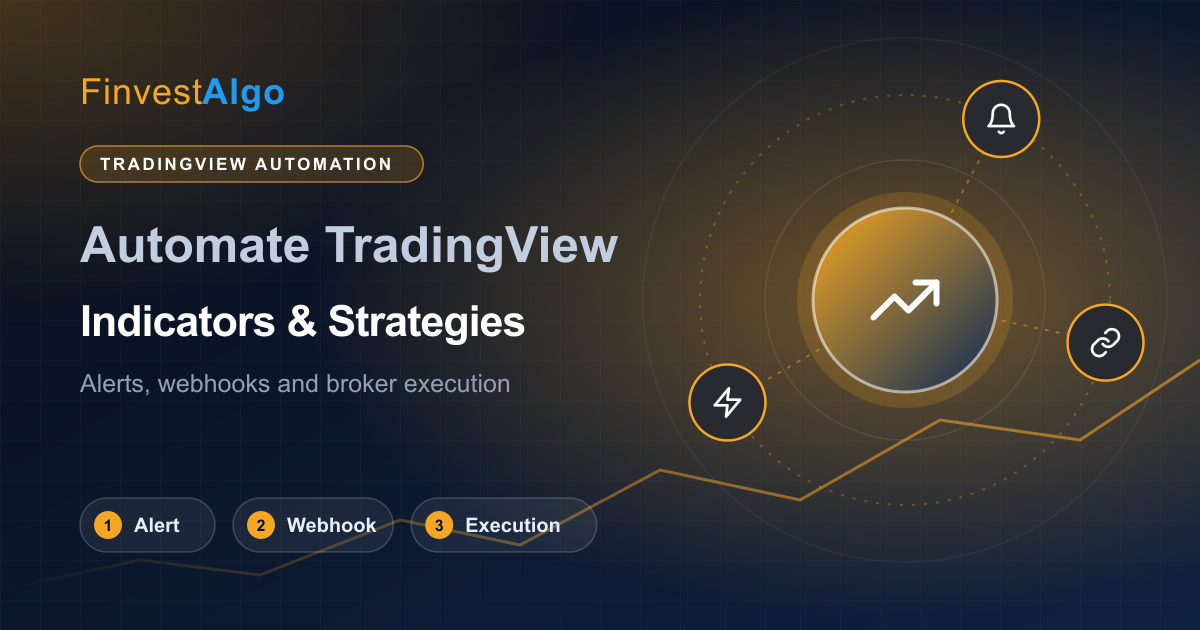
TradingView automation sends an alert from your indicator or Pine Script strategy to a webhook URL. FinvestAlgo receives the signal, applies your Order Manager rules and sends the order request to your connected broker. The flow is: TradingView indicator or strategy, alert, webhook, FinvestAlgo API bridge, Order Manager, broker API, order execution. A webhook does not place an order by itself; the receiving system must interpret the message. Actual execution depends on the alert configuration, message format, broker connectivity, order settings, available funds, market conditions and applicable restrictions.
Key takeaways
- Indicator alerts and strategy alerts are configured differently; choose the type that matches your script.
- TradingView alerts use the settings captured when they were created, so recreate an alert after you change script settings.
- Use the exact message format your FinvestAlgo bridge expects; valid JSON is sent with an application/json content type.
- A strategy backtest order is not the same as a live broker order; check the broker position, not only the chart.
- Run a controlled test and keep a way to disable automation before going live.
Automate Your TradingView Indicators & Strategies with Your Broker
Already using TradingView to analyse charts, identify trading opportunities, or run your own strategies?
You can take the next step by connecting your TradingView alerts to your supported broker and automating order execution.
With FinvestAlgo, your existing TradingView indicator alerts or strategy alerts can be connected to a broker through a webhook/API bridge and an order manager. This helps reduce repetitive manual order placement while allowing you to configure quantity, stop loss, targets, trailing stop loss, and other execution controls.
You can use your own trading logic and TradingView setup. FinvestAlgo provides the automation infrastructure that connects your alerts to your broker.
No need to switch your charting platform. No need to manually place every order when a configured alert triggers.
The important part is setting up the correct alert type, webhook message, broker connection, and order rules.
Start here:
How Does TradingView Automation Work?
TradingView generates an alert when a configured condition is met. The alert sends a message to the webhook URL configured in TradingView. FinvestAlgo receives the signal, processes it according to your configured automation rules, and sends the applicable order request to your connected broker.
The complete automation workflow
- 1TradingView Indicator or Strategy
- 2TradingView Alert
- 3Webhook
- 4FinvestAlgo API Bridge
- 5Order Manager
- 6Broker API
- 7Order Execution
This is the basic flow. Actual execution depends on the alert configuration, message format, broker connectivity, order settings, available funds, market conditions, and applicable broker or exchange restrictions.
What does each component do?
| Component | Purpose |
|---|---|
| TradingView indicator or strategy | Generates your trading conditions or signals |
| TradingView alert | Triggers when the selected alert condition occurs |
| Webhook | Sends the alert message to an external endpoint |
| FinvestAlgo API bridge | Receives and processes the configured signal |
| Order Manager | Applies supported quantity, SL, target, and other execution settings |
| Broker API | Receives the order request for execution |
A webhook does not itself place an order. It transmits information to an external system, which must interpret the message and process the relevant action.
1. TradingView Indicator Automation vs Strategy Automation
Before configuring your setup, identify what you are using on TradingView. This is the first step toward choosing the correct alert configuration.
A. TradingView Indicator Automation
An indicator helps identify conditions on a chart. Examples include moving average crossovers, RSI conditions, Supertrend signals, breakout indicators, and custom buy/sell indicators.
Depending on how an indicator is built, TradingView may allow alerts based on predefined conditions, alertcondition() calls, or alert() calls.
When a supported alert triggers, its message can be sent to your configured webhook and processed by FinvestAlgo.
Typical use cases:
- Buy and sell signals from an indicator
- Moving average crossover alerts
- RSI-based conditions
- Breakout and price-action signals
- Supertrend direction changes
- Custom Pine Script indicator alerts
- Alerts from private or invite-only indicators, where TradingView permits alert creation and the signal can be configured for automation
Not every indicator automatically generates a usable buy/sell signal. Some indicators only display values, lines, or visual markers. The required alert condition and message must be available or configured appropriately.
B. TradingView Strategy Automation
A TradingView strategy is generally used to define trading rules and evaluate strategy orders and performance through TradingView's strategy engine.
If you already use a Pine Script strategy, you may be able to automate its supported alerts through a webhook connection.
Depending on the strategy's implementation and your alert configuration, strategy alerts can be based on order-fill events, alert() function calls, or both.
Typical use cases:
- Automated long and short entries
- Strategy entry and exit alerts
- Intraday and positional systems
- Pine Script strategy-based execution
- Rule-based trading across configured symbols
- Custom entry and exit logic
A strategy's backtest order is not the same as a live broker order. Your strategy alert must be configured correctly, and the received message must map to the intended broker action. TradingView's simulated position and your broker's actual position can differ.
Which option should you use?
| Your TradingView setup | What to configure |
|---|---|
| Standard indicator with a supported alert condition | Indicator alert |
| Custom Pine Script indicator | Supported script alert or indicator condition |
| Pine Script strategy with order fills | Strategy alert configured for the intended order events |
| Script using alert() | Script alert that includes the relevant alert() events |
| Private or invite-only indicator | Confirm that alerts can be created and that the required signal is available |
| Indicator that only plots visual signals | Check whether an alert condition or suitable script modification is required |
If you are unsure which alert type your script supports, check its alert options before configuring the bridge.
For more details, see TradingView's official guides:
2. What Do You Need Before Starting?
Keep these things ready before setting up TradingView automation.
- A TradingView account with the alert features required for your setup.
- Your indicator or strategy added to the relevant chart.
- A supported broker account with the required API access enabled.
- A FinvestAlgo account.
- The appropriate webhook and alert-message configuration.
- Your intended order settings, including quantity and risk controls.
- A test plan to verify the signal-to-order mapping before enabling live automation.
TradingView plan features, alert limits, expiration settings, and webhook availability may vary. Check your current TradingView plan and the requirements for your specific alert type.
3. Step-by-Step: Connect Your Broker to FinvestAlgo
First, establish the broker connection. Then configure the TradingView alert.
Step 1Create your FinvestAlgo account
Visit FinvestAlgo and sign in or create an account.
Open the relevant TradingView automation section and follow the current onboarding process.
Step 2Connect your broker
Choose your supported broker and complete the required connection or API authorisation process.
Depending on your broker, the process and available permissions may differ.
Before continuing, verify that:
- The intended broker account is connected.
- The connection status is valid.
- Required API permissions are available.
- You understand any broker-specific restrictions.
Use the official broker authorisation process. Never put broker passwords, API secrets, or other sensitive credentials into an ordinary TradingView alert message.
Step 3Open the TradingView automation configuration
Navigate to the applicable bridge or automation configuration in FinvestAlgo.
Select the relevant configuration for your intended TradingView setup and review the fields available in the current interface.
The precise labels may differ as the platform evolves, so use the instructions shown in your account.
Step 4Review your order settings
Configure the execution rules applicable to your strategy.
Depending on the available settings, these may include:
- Fixed quantity or supported capital-based quantity
- Order direction and product type
- Entry handling
- Stop loss and target
- Trailing stop loss
- Session start and end times
- Position management
- Automation enable/disable controls
Do not assume that every risk-management feature is part of the TradingView alert itself. Some controls are configured in the order manager, while the alert provides the signal that initiates an action.
Keep a record of your intended settings before testing. This makes it easier to identify whether an unexpected result came from the alert, message mapping, quantity rules, or broker response.
4. Configure Your TradingView Webhook Alert
This is the key step connecting TradingView to your automation workflow.
Step 1Open the chart containing your indicator or strategy
Open the relevant TradingView chart and confirm that the intended indicator or strategy is loaded.
Verify the symbol, timeframe, and script settings.
For strategies, check whether you want alerts based on order fills, alert() calls, or the appropriate combination supported by your script.
For indicators, select the alert condition that represents the signal you want to automate.
Step 2Create the alert
Open TradingView's Create Alert interface.
Select the relevant symbol and the correct condition for your indicator or strategy. Choose the required trigger behaviour and expiration settings.
The exact options depend on the selected script and the features supported by your TradingView account.
Step 3Enter the webhook URL
In the alert configuration, enable the webhook URL option and enter the endpoint supplied for your FinvestAlgo configuration.
Use the exact URL provided by the platform. Do not copy a webhook URL from an unrelated example or another user's configuration.
TradingView sends an HTTP POST request to the configured endpoint when the alert triggers.
Step 4Configure the alert message
The message tells the receiving system what the alert represents.
Depending on your integration, it may need to identify an action such as a buy, sell, entry, or exit, together with the relevant symbol or other required fields.
Use the message format specified by your FinvestAlgo bridge configuration.
For example, a bridge may expect a particular JSON structure. That does not mean every integration accepts the same JSON fields. Do not use an illustrative payload from another platform unless it matches your actual configuration.
If your setup uses JSON, ensure the message is valid JSON and follows the expected schema. TradingView documents that valid JSON alert messages are sent with an application/json content type.
Step 5Save and verify the alert
Before enabling live execution, confirm:
- The correct script and alert condition are selected.
- The webhook URL is correct.
- The message format matches your bridge configuration.
- The symbol and action map to the intended order.
- The alert is active and has not expired.
A TradingView alert being created successfully does not, by itself, confirm that the broker order will be placed. The complete workflow needs to be tested.
Official reference: How to Configure Webhook Alerts on TradingView.
5. Test the Complete Signal-to-Order Workflow
Do not jump directly from configuring an alert to running a live strategy with significant capital.
Start with a controlled test.
Your pre-live checklist
- The intended broker account is connected.
- The correct TradingView indicator or strategy is selected.
- The alert uses the intended trigger condition.
- The webhook URL matches your FinvestAlgo configuration.
- The message format and action mapping have been checked.
- The intended symbol and quantity are correct.
- Stop loss, target, and other configured controls have been reviewed.
- The alert-to-bridge flow has been tested using an appropriate safe testing method.
- You know how to disable automation or intervene manually.
Use a supported test or paper-trading environment where available. If live testing is necessary, keep the exposure small and understand the risks of actual order execution.
Once the test results match your expectations, enable the intended automation configuration and monitor it.
6. What Can You Automate with TradingView and FinvestAlgo?
Your setup depends on the signal source, alert-message mapping, broker, and enabled order-management features.
Indicator-based execution
Connect supported indicator alerts to the bridge to automate the actions represented by your configured signals.
Pine Script strategy execution
Use supported strategy alerts to process entry, exit, and other configured actions. Ensure the chosen alert type matches the strategy's logic.
Stop loss, targets and trailing stop loss
Use the relevant order-manager settings where supported to configure stop loss, targets, and trailing stop loss.
The handling of these controls depends on the configuration and the connected broker's capabilities. Confirm how exits and position changes are managed before going live.
Quantity and capital controls
Configure the available quantity rules, such as fixed quantity or supported capital-based sizing.
Always verify the resulting order quantity, especially when the same system is used with different instruments or prices.
Session controls
Where supported, configure the period during which automation should be active.
Review these settings against the relevant market session, instrument, and trading schedule.
Private or invite-only indicators
You may be able to automate alerts from private or invite-only indicators if TradingView allows you to create the required alerts and the signals can be connected to your bridge.
Access to a private indicator does not automatically mean it exposes every signal or supports every type of automation. Confirm the actual alert options available to you.
7. Supported Brokers
FinvestAlgo's TradingView automation service supports multiple broker integrations. The current website lists brokers including:
- Zerodha
- Angel One
- Fyers
- Dhan
- Upstox
- Alice Blue
- ICICI Direct
- IIFL
Broker availability, API permissions, supported order types, and setup requirements can change. Check the FinvestAlgo TradingView Automation page for the current supported-broker information.
If you are searching for a specific setup, you can also explore related topics such as TradingView to Zerodha automation, TradingView to Dhan automation, and TradingView webhook integration.
8. Common TradingView Automation Problems and How to Troubleshoot Them
If an alert is visible on TradingView but an order does not appear at your broker, check each part of the workflow instead of assuming the entire bridge is down.
- 1Alert triggered
- 2Webhook received
- 3Order request processed
- 4Broker response
Problem 1TradingView alert is not triggering
Possible causes:
- The wrong condition was selected.
- The signal condition has not occurred.
- The script's alert logic does not support the selected event.
- The alert expired or is inactive.
- The script's settings changed after the alert was created.
What to check: Open the alert configuration and verify the symbol, timeframe, condition, trigger frequency, expiration, and current script settings.
TradingView notes that alerts operate using the settings captured when they were created. If you change an indicator's parameters, you may need to recreate the alert to apply the new configuration.
Problem 2The alert triggers but the broker order is missing
Possible causes:
- The webhook URL is incorrect.
- The message format does not match the bridge's requirements.
- The signal does not map to a supported action.
- The broker connection or API permissions are not valid.
- The order was rejected or blocked by a broker-side restriction.
What to check: Verify the alert log, webhook configuration, bridge status or logs where available, broker connection, and broker order status.
Problem 3The wrong order action is being processed
For example, an exit signal may be interpreted incorrectly if the alert message does not match the configured action mapping.
What to check: Confirm the intended mapping for every action and verify how the bridge handles entries, exits, long/short signals, and reversals. Do not assume that a generic BUY or SELL message has the same meaning in every strategy.
Problem 4The quantity is different from what you expected
Possible causes:
- A quantity rule is configured differently than intended.
- Capital-based sizing produces a different quantity at the current price.
- The symbol or instrument mapping is incorrect.
- The broker applies quantity, margin, or product restrictions.
What to check: Review the configured quantity method, instrument, order parameters, and broker response before resuming live automation.
Problem 5Duplicate orders or repeated signals
Possible causes:
- The script triggers multiple alerts.
- The alert includes more than one event type.
- The same signal is being sent by multiple active alerts.
- Entry and exit events are not mapped as intended.
What to check: Review the active alerts, strategy alert-event selection, message mapping, and bridge behaviour for repeated signals. Use supported safeguards where available, and do not assume duplicate handling is automatic.
Problem 6Stop loss or target is not behaving as expected
Possible causes:
- The risk controls were not configured in the intended component.
- The alert only represents an entry signal.
- The broker or product type does not support the intended order behaviour.
- The strategy's simulated exits differ from the broker's live position.
What to check: Verify whether SL and target are being managed by the strategy, the bridge/order manager, or the broker. Check the actual broker position and order book, not only the TradingView chart.
9. TradingView Manual Trading vs Automated Execution
| Manual workflow | Automated workflow |
|---|---|
| Monitor the chart and identify a signal | TradingView evaluates the configured alert condition |
| Place the order manually | A configured alert is sent to the webhook |
| Enter quantity manually | The configured quantity rules are applied |
| Manage exits manually, if desired | Supported exit and risk controls can be configured |
| Repeat the same steps for each signal | Repetitive execution steps can be automated |
Automation can reduce repetitive work and help apply predefined execution rules consistently. It does not guarantee better returns, eliminate risk, or ensure every order will be filled at the expected price.
10. Why Use FinvestAlgo for TradingView Automation?
FinvestAlgo is designed to connect your existing trading tools and rules with supported broker execution workflows.
Use your own TradingView setup
Continue using your own indicators, strategies, and alert logic rather than relying on a new strategy supplied by the automation platform.
Connect alerts to supported brokers
Use the available broker integrations and the configured webhook/API bridge to route supported signals toward execution.
Configure order management
Use supported settings for entry, stop loss, target, trailing stop loss, quantity, and session controls.
Keep control of automation
Review your configuration, monitor execution, and use the available automation controls to enable or disable the workflow.
Extend your existing trading process
If you already have a working TradingView workflow, the bridge can help connect that signal source to your broker without requiring you to rebuild your entire trading process around a different charting platform.
FinvestAlgo provides execution infrastructure. It does not supply trading recommendations, guaranteed-profit strategies, or buy/sell calls.
Explore the platform: TradingView Automation by FinvestAlgo
11. Frequently Asked Questions
Can I automate TradingView indicators?
Yes, if the indicator supports the required alert condition or script alert and the signal can be mapped to your configured automation workflow.
Can I automate TradingView Pine Script strategies?
Yes, supported strategy alerts can be connected to the automation workflow. The alert must use the appropriate event type and message format for the intended order action.
Can I automate a private or invite-only TradingView indicator?
Potentially, yes. The required alert must be available to you in TradingView, and its signal must be suitable for the configured bridge. Private access alone does not guarantee that every indicator supports automation.
Do I need to modify my Pine Script code?
Not always. Some scripts expose the alert conditions you need without modification. Other scripts may require changes to their alert logic or message format. Whether modification is necessary depends on the script and integration.
Does TradingView automatically place orders with my broker?
A TradingView alert normally sends a notification or webhook message. An external system must receive and process that message to request a broker order. In this workflow, FinvestAlgo provides the bridge and order-management layer.
Can I automate both entry and exit signals?
Yes, where the relevant signals and alert configuration support those actions. Ensure that the bridge correctly distinguishes entries, exits, and other intended actions.
Can I configure stop loss, targets and trailing stop loss?
FinvestAlgo offers order-management controls for these functions where supported. Configure and test the required settings, and confirm how the controls interact with your strategy and broker.
Can I use TradingView automation for intraday trading?
The workflow can be used for supported intraday setups, subject to the selected strategy, broker, instrument, alert configuration, and applicable trading rules.
Will my TradingView backtest results match live execution?
Not necessarily. A backtest uses TradingView's strategy calculations and assumptions. Live orders are affected by alert timing, broker responses, available funds, slippage, liquidity, order types, and other market conditions.
What happens if TradingView sends an alert but my broker rejects the order?
The alert may have reached the external system successfully even though the broker rejected the order. Check the bridge and broker records to identify the rejection reason before resuming automation.
Can I stop automation whenever I want?
FinvestAlgo provides automation controls. Learn how the relevant enable/disable and emergency-stop controls work in your configuration before running live orders. Disabling future automation should not be assumed to cancel existing broker orders or close open positions unless that behaviour is explicitly supported and confirmed.
Does FinvestAlgo provide TradingView strategies or trading signals?
No. FinvestAlgo provides trading automation and execution infrastructure. Users are responsible for their own trading logic, signals, strategy selection, and risk decisions.
Ready to Automate Your TradingView Setup?
If you already use TradingView indicators or Pine Script strategies, the next step is to connect your alert workflow to a supported broker and verify that every signal maps to the intended order.
Start by reviewing the available integration, connecting your broker, configuring your alert, and testing the complete workflow before enabling live automation.
Need help choosing the correct setup for your indicator or strategy? Contact the FinvestAlgo team through the official website.